
MediBang Paint:Draw Art, Comic
MediBang Inc.Art & Design
3.714.37K Reviews
- Version
- 28.25
- Installs
- 10.00M
- Age Rating
- Teen
Screenshots
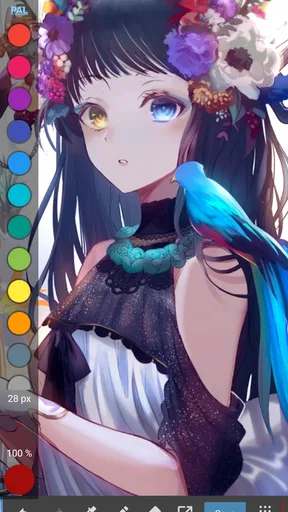
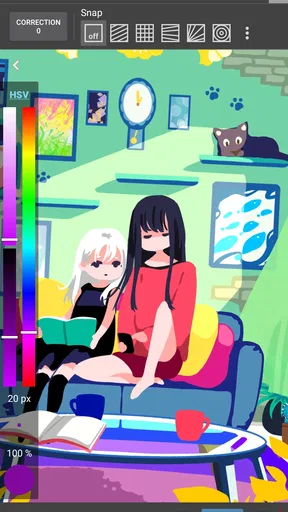
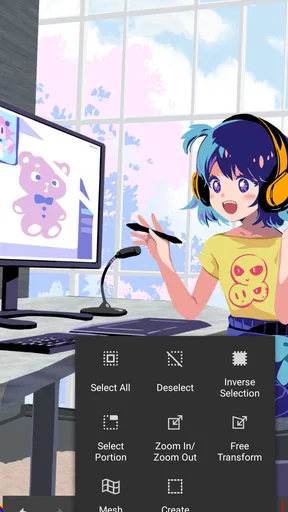
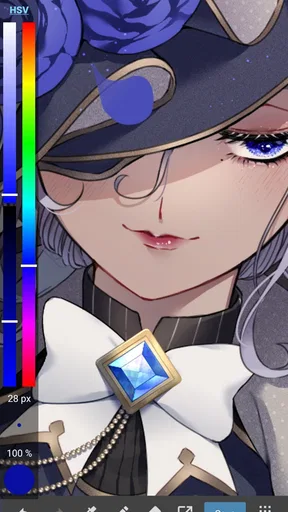
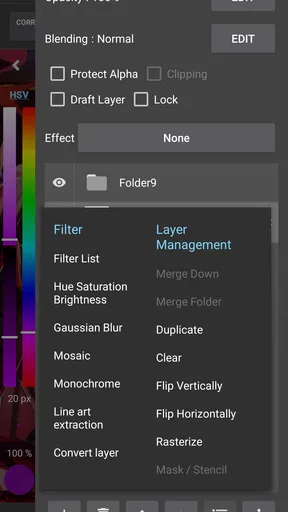
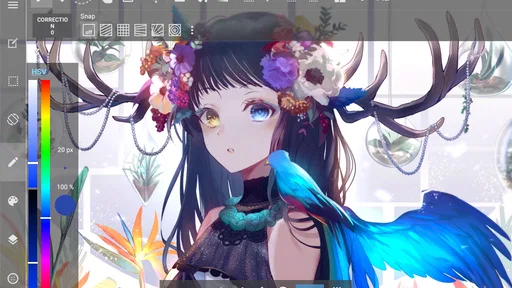
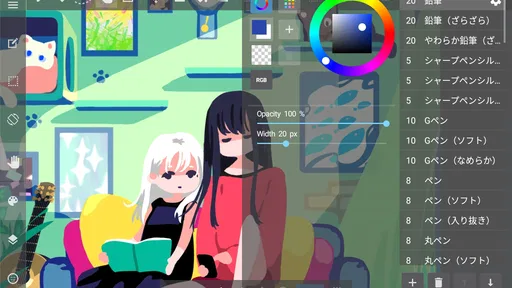
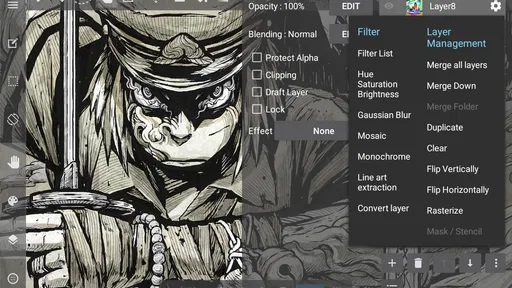
Our Review of MediBang Paint:Draw Art, Comic
 Analysis by Appyee
My first practical takeaway from MediBang Paint is that a feature-rich drawing app can still feel approachable, but a few early choices shape how comfortable it is to use. I’d treat the first session as a quick setup rather than jumping straight into a long comic page: open a small sketch, test a couple of tools, and learn where the controls you use most often sit. That simple trial run makes it easier to tell whether the workspace suits your habits before you commit to a larger project.
Where new users tend to get stuck
The main learning curve is not drawing itself; it’s deciding how to organize the work. Brush options, layers, canvas controls, and comic tools give you room to build a personal process, but they can also make the screen feel busy once you start changing settings. I recommend trying one tool at a time and making a few marks on a practice canvas. It is much easier to understand what a brush setting does when you can compare the result directly than when you change several options at once.
For comic work, the panel tool can simplify page layout, but it does not remove the need to plan the page. Before adding dialogue or polishing a character, I’d sketch the panel flow and check that the eye can move through it clearly. That small planning step can save time: a technically tidy page is not automatically an easy one to read, especially if the panel sizes and action compete for attention.
Setup checks that make a difference
Before starting a piece you care about, I’d confirm that the canvas is the right shape for its intended use and that the selected brush behaves as expected at the size you plan to draw. A quick test stroke can reveal whether a pen feels too soft, too textured, or simply different from what you had in mind. If you are drawing on a phone, also try rotating the device and moving the canvas around; the best arrangement is the one that lets your hand reach the tools without interrupting your drawing rhythm.
Cloud saving is useful when you move between devices, but I would still make a deliberate habit of checking that a project has saved before closing the app or switching devices. Treat cloud storage as a convenient part of your workflow, not as a reason to skip sensible file care. For a piece that matters, keep a local copy when the available export or save options suit your needs. I also suggest doing a small test project before relying on a cross-device workflow for a deadline.
Recovering a workflow when something feels wrong
If a brush suddenly looks different, check the active brush and its settings before assuming the whole project has changed. It is easy to switch tools accidentally while working, and a short test mark on a spare area can help isolate the issue. If the canvas feels cluttered, hide or simplify anything you do not need for the next task and return to the drawing in stages: rough shapes first, details later. This is often quicker than trying to perfect every layer or setting while the composition is still unsettled.
When a project feels slow or awkward, I’d try a smaller test canvas and fewer active layers to see whether the device is struggling with the scale of the work. Performance can depend on the hardware and the project, so this is a practical way to narrow down the source of friction rather than changing several settings blindly. If the app closes or behaves unexpectedly, reopen it and check the last saved version before continuing. For important work, saving at natural milestones—after a sketch, after a clean-up pass, and after major color changes—makes recovery less stressful.
When the app may not be the cause
Not every drawing problem comes from the software. A screen that feels slippery, a stylus that does not suit your grip, or a small display can make precise line work tiring even when the app responds normally. I’d test the same short line or curve at a comfortable zoom level and compare how it feels with a finger, stylus, or another input method available to you. If the result improves when you change your hand position or zoom, the obstacle may be the physical setup rather than a hidden app setting.
Likewise, a confusing comic page may need a clearer reading order rather than more tools. Step back from the details, look at the page as a sequence of large shapes, and check whether each panel leads naturally to the next. This is one reason I find the app most rewarding when I treat it as a drawing workspace, not a substitute for planning, visual editing, or learning fundamentals.
Who will get the most from it
I’d recommend this art and design app to people who want one place for sketching, painting, and comic-oriented work, especially if they enjoy adjusting brushes and building a repeatable workflow. A beginner can start with simple sketches and learn gradually, while a more experienced artist may appreciate having drawing and panel-layout tools together. MediBang Inc. has developed an app that aims to serve both kinds of creators, though the range of options means newcomers may need patience before the workspace feels familiar.
It is less suited to someone who wants a minimal notepad for occasional doodles or who expects every action to happen automatically. If you mainly need quick annotations, a basic drawing tool may be faster to open and easier to manage. If your work depends on a highly specialized professional pipeline, compare the specific export, device, and production needs of your usual software before moving a whole project over. I see this as a flexible mobile art tool, not a universal replacement for every desktop or specialist application.
A realistic way to use it day to day
Picture a short break between classes or during a commute: I could open a small character sketch, test a pose with a simple brush, then add a few layers to separate the rough drawing from cleaner lines. Later, at home, cloud saving may make it convenient to continue on another device. For a comic idea, I’d use the panel tools after the rough sequence is clear, then check the page at a reduced view to judge its overall rhythm. The useful lesson is to divide the session into modest stages rather than trying to finish a polished page in one sitting.
That workflow also helps answer a common practical question: is the app only for comics? No. The same drawing space can suit loose studies, character concepts, and painted experiments. The comic tools are a reason to choose it, not a requirement for using it. If you are unsure whether its controls fit your style, make a small personal test piece first; that will tell you more than trying to judge the app from a long list of features.
How it compares with familiar alternatives
Compared with a very simple sketching app, MediBang Paint offers more room to shape a project, but that flexibility asks you to make more decisions. A lightweight tool can be better for a quick note or a spontaneous doodle; here, I’d choose the app when I want to build a drawing in stages or lay out comic panels. Compared with desktop art software, its appeal is that I can work on a mobile device, while a larger screen and a dedicated desktop workflow may remain more comfortable for intricate, long sessions.
There is a trade-off between having many brushes and finding the right one quickly. I’d avoid browsing through options every time I start a drawing: choose a small personal set for sketching, line work, and shading, then adjust only when a project calls for something different. That keeps the variety useful instead of turning it into a distraction. The same principle applies to customization—set up what genuinely saves you time, and leave the rest alone until you have a reason to change it.
What it feels like to draw and create comics
If you're someone who loves to dabble with digital art, comics, or just enjoys a good sketching app, you might have come across MediBang Paint. This app has become quite popular among artists on both Android and iOS. I had the chance to explore it and wanted to share my thoughts with you.
First Impressions
When I first opened MediBang Paint, I was greeted by a clean and user-friendly interface. It’s not overwhelming, which is a breath of fresh air, especially if you’ve ever felt lost in other art apps. The home screen offers a smooth navigation experience, guiding you to either start a new project or continue working on an existing one.
Features That Stand Out
There’s a lot packed into this app, so let’s break it down:
- Brush Variety: One of the most important aspects of any art app is the brush selection. MediBang Paint offers a wide array of brushes that can be customized to suit your style. From pens and markers to watercolor and airbrush, the options seem endless.
- Cloud Saving: This feature is a lifesaver. You can save your work on the cloud, which means you can access your projects from any device. No more worrying about losing your files if something happens to your phone or tablet.
- Comic Creation Tools: If you’re into making comics, you’ll appreciate the comic panel creation tool. It’s intuitive and makes the whole process of setting up panels much easier.
- Collaboration: The app allows you to collaborate with other users. You can share your work and get feedback or even work on joint projects, which is pretty cool for community-driven projects.
User Experience
Using the app is quite straightforward. The toolbar is accessible and doesn’t clutter the screen, allowing you to focus on your art. Whether you're adding layers, adjusting brush settings, or utilizing the transform tool, everything feels responsive and snappy.
What I found particularly helpful are the tutorials and guides available within the app. If you're a beginner, these resources can help you get up to speed quickly. And for seasoned artists, there are advanced techniques to explore.
Performance
I tested MediBang Paint on both an Android device and an iPad. The app was smooth on both platforms, with minimal lag, even when working with larger files. Of course, performance can vary depending on your device, but overall, it handled everything I threw at it.
Customization and Settings
The level of customization in MediBang Paint is impressive. You can tweak almost every aspect of your workspace. Adjusting the color palette, setting your favorite brushes, and even customizing shortcuts are all possible. This makes the app adaptable to different workflows, which is a big plus in my book.
Community and Resources
One thing I love about MediBang Paint is the vibrant community. The app connects you to a world of artists who share tips, tutorials, and even artwork. It’s inspiring to see what others are creating and to have a platform to showcase your own work.
There are also plenty of resources available online, from forums to video tutorials, which makes learning new techniques a breeze. It’s like having a community art class at your fingertips.
What to know before choosing it
The app is free to download, with in-app purchases ranging from about two dollars and fifty cents to nine dollars per item. That makes it easy to try without paying upfront, though I’d check the purchase prompts carefully and decide which extras, if any, are worth it for the way I draw. It is rated for Teen users, so it is not presented as a children-only drawing space.
It has been available since June 2015, and version 28.19 is listed for devices running Android 7.0 or later. Its average rating is 3.8 from around 301,000 ratings, with about 14,000 written reviews, and it has passed 10 million installs. Those figures suggest a substantial audience, but they cannot tell you whether the brush feel or workflow will suit your hand; a short trial sketch remains the best test.
Final Thoughts
After spending considerable time with MediBang Paint, I can confidently say it’s a fantastic tool for digital artists. Whether you’re a complete beginner or a seasoned professional, there’s something in this app for you. Its combination of powerful features, ease of use, and community support makes it a standout choice for anyone looking to create art on the go.
So, if you’re ready to unleash your creativity, give MediBang Paint a try. It might just become your go-to app for drawing and comic creation. And hey, it’s free, so what do you have to lose?
My practical verdict
My overall view is that MediBang Paint makes the most sense for someone who wants to move between sketching and comic page work without switching to a separate app for every step. The strongest reason to try it is that combination of drawing tools, adjustable workspace, and comic-focused options. The main cost is attention: you will get more from it once you learn a few controls and settle on a compact set of brushes and habits.
If I were recommending it to a friend, I’d say to start with one small sketch, try the panel workflow only if a comic is your goal, and keep a deliberate save routine for anything important. People seeking a bare-bones doodle pad may be happier with a simpler alternative, while artists who want a mobile workspace with room to grow have good reason to give this one a look. That is the most honest way I can sum it up: capable and approachable, but best when you take the time to make its tools work for you.
Verdict
Strengths of MediBang Paint:Draw Art, Comic
- User-friendly interface for beginners.
- Wide range of brushes and tools.
- Cross-platform cloud syncing.
- Supports PSD format for flexibility.
- Regular updates with new features.
Limitations of MediBang Paint:Draw Art, Comic
- Ads can be intrusive at times.
- Limited features in free version.
- Occasional lag on older devices.
- No offline mode for cloud features.
- In-app purchases can be costly.
Similar Picks in This Category
View All
Canva: AI Photo & Video Editor
Canva4.8

PENUP – Drawing-sharing SNS
Samsung Electronics Co., Ltd.4.5

Crafto
Kutumb App4.6

Sketchbook
Sketchbook4.1

ibis Paint X
ibis inc.4.5

Adobe Express: AI Photo, Video
Adobe4.6
Frequently Asked Questions
What platforms is MediBang Paint available on?
MediBang Paint is available for both Android and iOS devices, allowing users to create art on the go. Additionally, it's also available for Windows and macOS, enabling cross-platform compatibility. This ensures that users can start a project on their mobile device and continue working on it on a desktop.
Does MediBang Paint offer cloud storage?
Yes, MediBang Paint provides free cloud storage for registered users. This feature allows artists to save their work online and access it from any device with MediBang Paint installed. This is especially useful for those who work on multiple devices and need to sync their projects easily.
Are there any in-app purchases in MediBang Paint?
While MediBang Paint is free to download, it offers in-app purchases. These purchases include additional brushes, materials, and ad removal features. Users can choose to buy these to enhance their drawing experience, although the app offers a robust set of free tools and features.
Is MediBang Paint suitable for beginners?
MediBang Paint is designed to be user-friendly, making it suitable for beginners. It features a simple interface that is easy to navigate, and offers tutorials to help new users get started. With a wide array of tools, beginners can gradually learn and improve their digital art skills.
Can I use MediBang Paint for comic creation?
Absolutely! MediBang Paint is equipped with features specifically for comic artists. It includes comic panels, screen tones, and various brushes tailored for comic creation. The app also supports exporting your work in different formats, making it easy to publish and share your creations.
